IP Blacklist
Last updated: 2022-06-03
Overview
This tool allows support to blacklist an IP. Have you identified a bot causing causing a processor spike on a Servebolt server? This is the place to go to make them stop.
How do I add a new block?
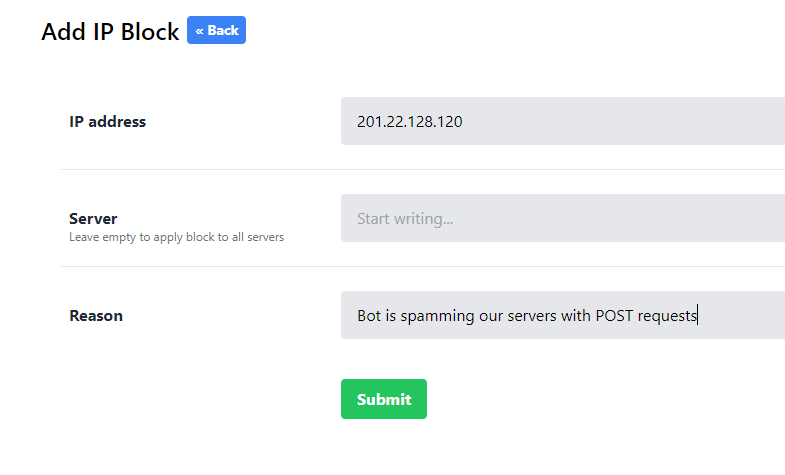
Click on the green Create button.
IP address rules
You'll need to add a valid IPv4 address. Note that you cannot add certain IP addresses (an error will be displayed and your request will be automatically rejected). These include the following:
- Local IP addresses
- Cloudflare IP addresses
- Fastly IP addresses
Server input
Global block
You have the power to issue a block on all Servebolt servers running vhostman (i.e. all servers hosting customer sites.) Use this judiciously. It's recommended to only use this ability when you notice a specific issue coming from a single IP affecting multiple servers. Leave the server name blank to issue a global ban.
info
All global blocks will also be blocked in the Servebolt CDN, not just at the server level! This means that all sites behind Servebolt CDN will be protected from your target IP by Cloudflare. Deleting the global IP block will also delete the block on Servebolt CDN.
Server-specific block
The generally recommended method of creating blocking http/https requests from an external IP is to create a new block for a specific server. The server textbox input will offer autocomplete suggestions based on the existing server names as you type. Once you've found your target server, hit that enter key.
Reason
Your reason should be descriptive but concise. You are limited to 128 characters. A reason must always be provided and cannot be left blank. Keep in mind that someone may be reading your block reason several years in the future, so some details could be useful.
Technical details
Once a block request is submitted, it is written to the Vhostman PostgreSQL database. Each running Vhostman service on each server picks up this new data and generates or regenerates a Nginx block config file -> /etc/nginx/conf.d/support-blocks.conf. Nginx will be automatically reloaded on the server. The hostile agent (i.e. probably the bot who is hammering the server) will now get a 403 response from Nginx when they try to access any sites on that server. In other words, a client's Wordpress running on the target Servebolt server will be insulated from these malicious requests after the block has been made.
On each server, this process takes up to 30 seconds to complete. If it ever takes longer than this, please contact Dylan or a relevant person who works with Vhostman and has ssh access.
How do I see all existing IP blocks?
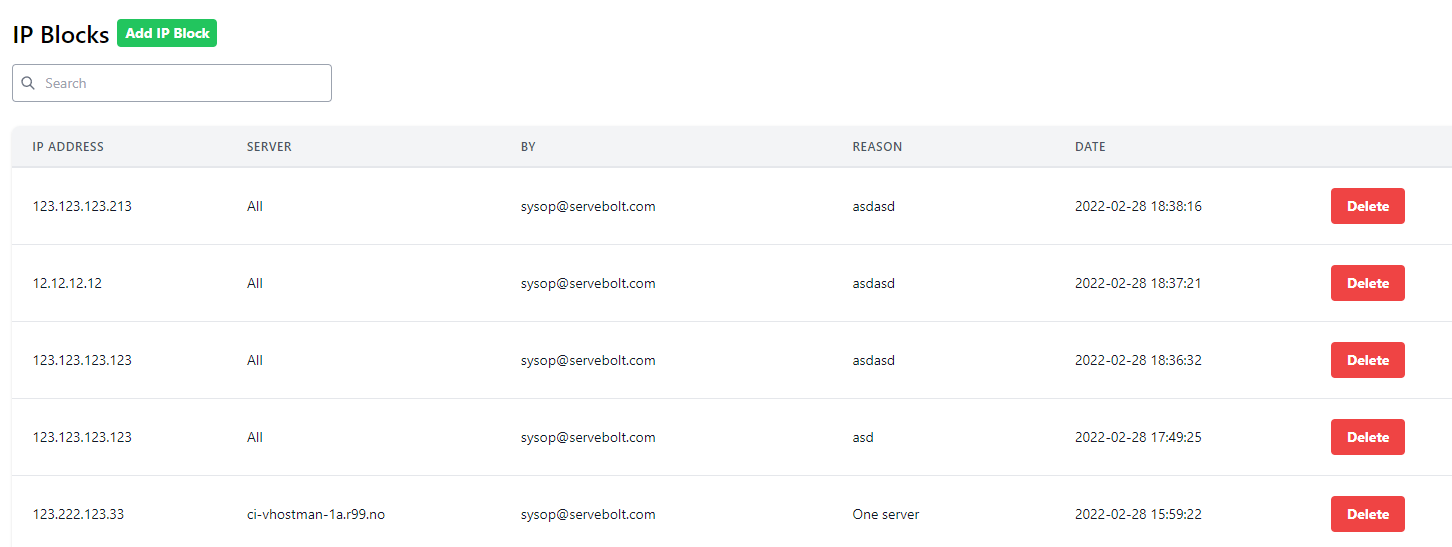
The IP blocks list page shows all blocks made by support. All support team members can see all blocks made by all team members.
Search
The search text box in the upper left corner will search based on the following criteria (partial match, case sensitive):
- IP address
- Server name
- Reason
How do I delete an existing IP block?
Just find your target IP block and smash that bright red Delete button on the right-hand column. You will be prompted with a pop-up confirmation window. After hitting yes, your deletion will be rolled out to the revelant server(s). This will also take up to 30 seconds to complete.