Customer Lockdown
This document is WIP.
Last updated: 2022-04-22
Overview
This tool allows support to lockdown all the bolts of a given customer. This is useful when a customer has not paid their bill and should no longer have access to our services.
How do I add a new lockdown?
Click on the green Add lockdown button.
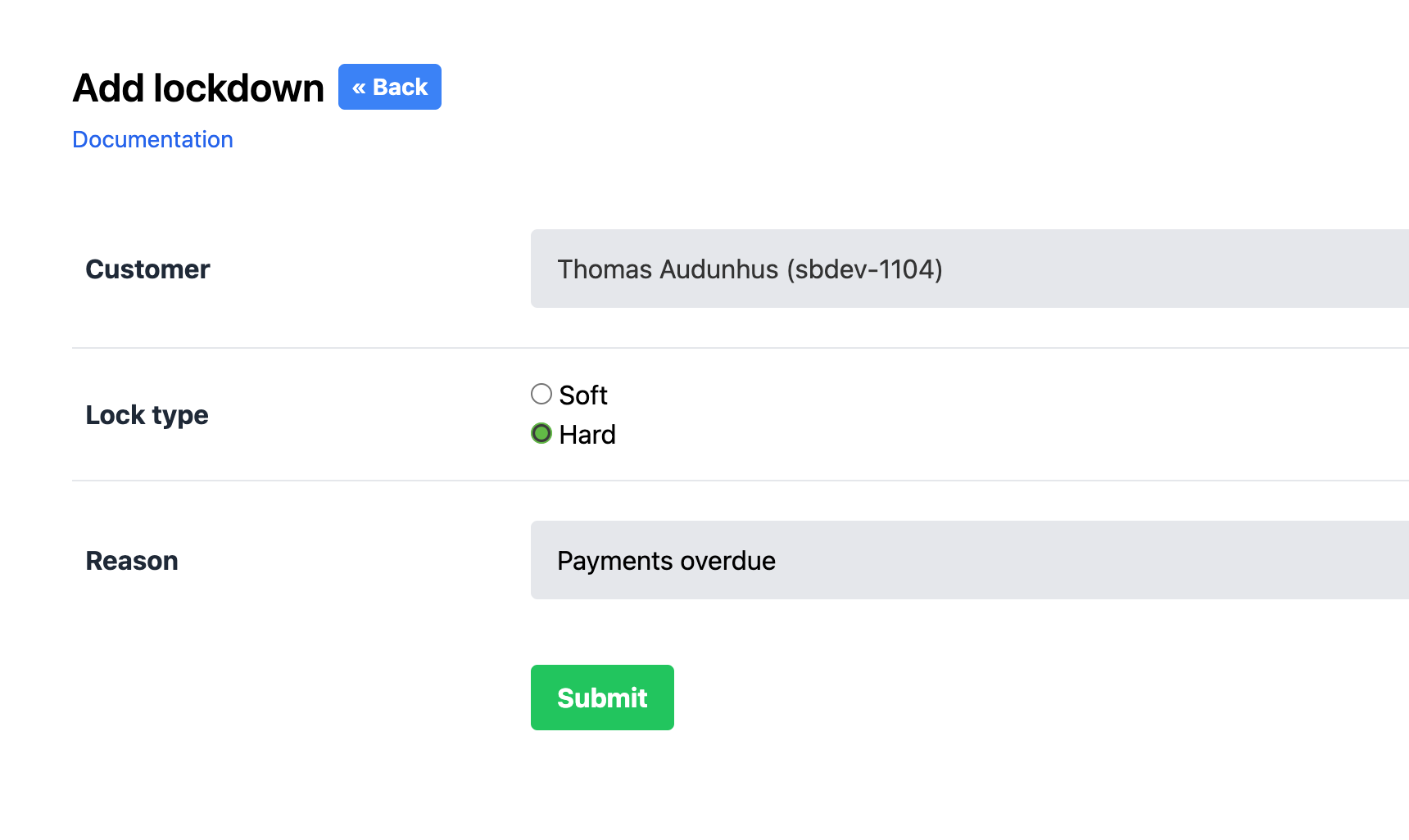
Customer input
This field defines which customer should be locked down (this will affect all of their bolts). Note that you cannot select a customer if:
- The customer is already locked down
- If the customer has the custom field "cf_creditcard_required" set to "Late payer" in their customer details in Chargebee
Lock input
Soft lock will lock the customers access to the control panel, and disable their SSH and SFTP access to their site. Hard lock will do everything a Soft lock does, but it will also disable the customer's bolt by redirecting traffic.
Reason
Your reason should be descriptive but concise. You are limited to 128 characters. A reason must always be provided and cannot be left blank. Keep in mind that someone may be reading your lockdown reason several years in the future, so some details could be useful.
How do I see all existing customer lockdowns?
The Customer lockdown list page shows all lockdowns made by support. All support team members can see all lockdowns made by all team members.
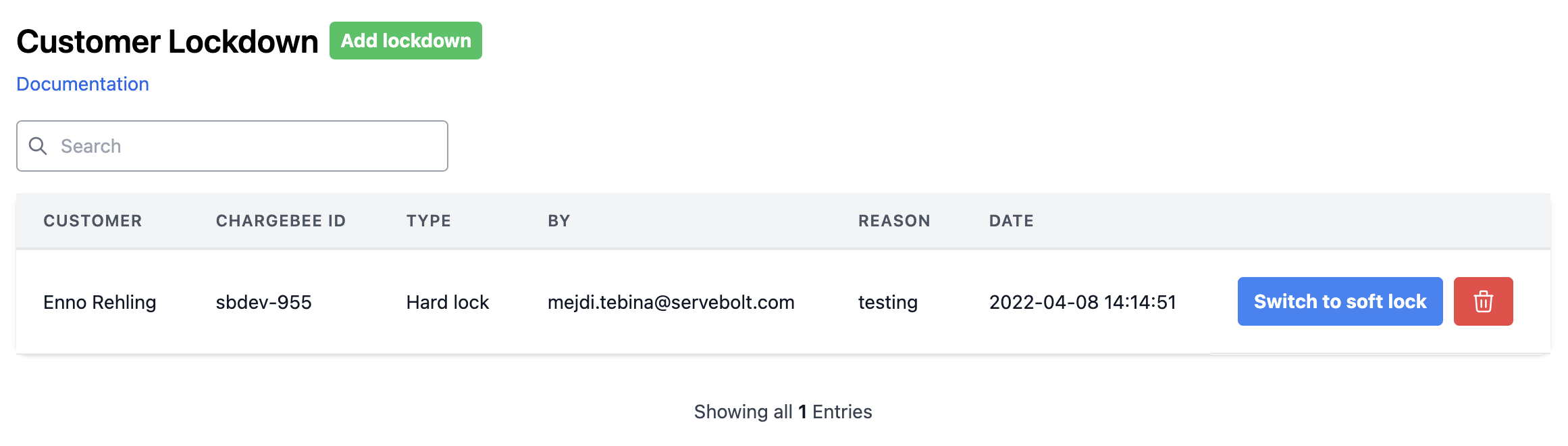
Search
The search text box in the upper left corner will search based on the following criteria (partial match, case sensitive):
- Chargebee ID
- Reason
How do I delete or change an existing lockdown?
Just find the customer using their Chargebee ID and click on the red trash bin button on the right-hand column. You will be prompted with a pop-up confirmation window. After hitting yes, the customer will be unblocked.
Alternatively, you can switch the type of a lock, e.g. going from Soft to Hard locking, using the blue button.