SSL Certificates
Last updated: 2022-02-29
How can I check the SSL status of a site?
You'll need the alias id. You may also know this as a domain id or a site id. You can find this in a variety of ways, but one way is to visit the Bolt's admin page, then get the link for the target domain from the SSL Settings button. It has a pattern of https://admin.servebolt.com/bolt/<bolt-id>/site/<vhost-id>/ssl/<alias-id>/settings. The third and final set of numbers in that URL is the alias id.
Enter this id into the Domain text box and click the blue Get certificate button. If it's a valid id and found, you should see the details in a black box below. If it's an invalid alias id, you will receive an error in a pop up window.
You should now see a JSON object displayed below that looks something like this:
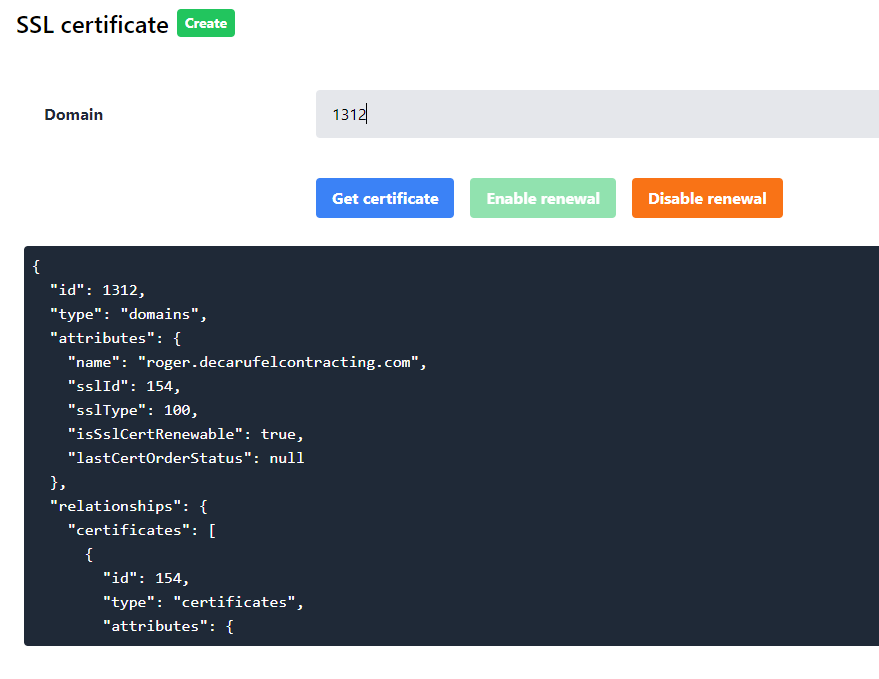
You don't need to worry about all the details here, but just check that the "name" value matches your target site. If you see a "sslId" integer, it means there is a SSL certificate already active for this site.
How can I enable or disable renewal for this site?
You can click the green Enable renewal or the orange Disable renewal buttons to toggle this on or off. You should see the "isSslCertRenewable" value change to/from true or false.
Note that this certificate will still be in place for this site until its expiry date (unless removed earlier by support or the client via the Control Panel.) You can see the expiration date in the JSON for that certificate. Check the "expires" value.
info
These buttons/values relate to future SSLMan functionality and will not have an effect on certificate renewals in this current release.
How can I order a new certificate?
Click that small green button in the top-left corner, next to the title.

Once again, you will need the alias id - please see the above instructions.
Types of certificates
You currently have three options (all with Let's Encrypt):
- Single Cert
- Private Group Cert
- Shared Group Cert
You can find each of these in the type dropdown.
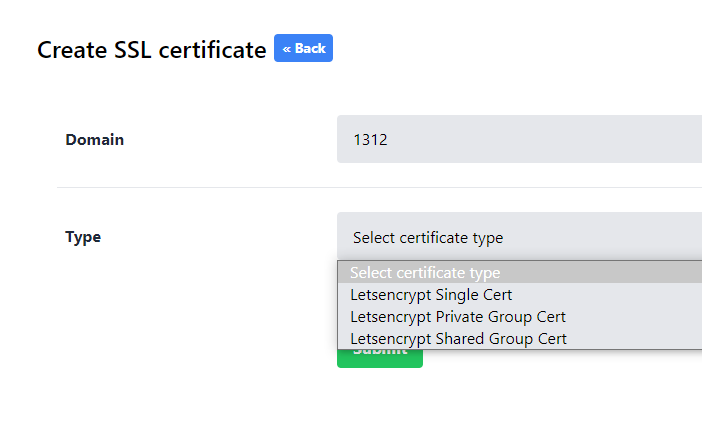
Generally you'll want to select Letsencrypt Shared Group Cert since this is our standard process.
Requirements for ordering a new certificate
The site in question cannot currently have an attached SSL certificate! If it does, you'll need to remove it via the Control Panel or the process will not start.
The site cannot have any blocking .htaccess rules and their relevant DNS record must be pointed to our server. You should be able to create a file in the customer's ~/public/.well-known/ that you can access by visiting http://<client-url>/.well-known/<your-test-file-name>. If you can't see the file there after you've added it? Probably means you can't order a Let's Encrypt certificate yet.
What happens after I click submit?
On a more technical level, this updates some of the data for the site in the Vhostman PostgreSQL database. SSLMan will detect this new info and intiate a slightly complicated process - you can find a ShiftX flow here.
It'll take a minute or two to complete. Once it's complete, you should see a "sslId" value in the certificate data (see above info for instructions.)