Support SSH Access
Last updated: 2022-04-12
Overview
Clients need to know their data is protected. Part of this means that no unauthorized person should have access to their hosted Servebolt files unless their are emergency reasons for the intrusion.
This tool is part of a set of security-/privacy-focused measures. Servebolt staff members no longer can directly access sensitive files related to customers' vhosts except under three specific circumstances:
- Client-approved (initiated via direct client confirmation via Intercom);
- Emergencies;
- Operations team (limited to a tiny group of Servebolt administrators on dedicated hardware - but the details are outside the scope of this document)
The support SSH access functionality in Webtools helps solve the second scenario: enabling emergency access. We can conceptualize this type of access as a "break glass" situation when there's action that needs to be immediately taken but the client is unable to directly provide authorization.

SSH Keys
What are SSH keys?
Built upon advances in the field of mathematics in the 20th century, SSH keys use public key cryptography to allow secure access to a server.
A key is made up of two parts, both of which are typically stored in files that live in a ~/.ssh/ directory after generation:
- The public key: by default this file name ends in
.pub. It can be shared freely and publicly without any risk. The contents of the public key are appended to a file on the destination server (typically found in an~/.ssh/authorized_keysfile.) If the SSH service running on the server is configured appropriately, adding a public key to the appropriateauthorized_keysfile will allow remote passwordless access from the holder of the private key. - The private key: the contents should never be shared with anyone under any circumstances. This includes other staff members. This is used when connecting to the remote machine. Typically your SSH client will automatically use your private key when you try to connect (depending on key filenames/locations/etc.) You can also force your client to use a specific SSH key with the
-iflag (example:ssh -i ~/.ssh/id_ed25519 exampleuser@vhostmandev.r99.no)
Generally at Servebolt, at the time of writing, we recommend you use a Ed25519 key instead of the more standard RSA-type keypair.
You can generate a secure keypair using the following command:
ssh-keygen -o -a 100 -t ed25519 -f ~/.ssh/id_ed25519 -C "youremail@example.com"
All SSH keys used in relation to Webtools must have a secure password set in case you lose your computer, etc.
How can I use my SSH key?
Only administrators can attach a public key to a staff member's account. So, if you see an error message here that no keys are attached to your account, please talk to your team lead who can give you more information about who to contact (likely someone in operations.) You can send them your public key and they should advise you when the process is complete.
Can I have multiple SSH keys attached to my support account?
Yes. We're not sure if there's much demand for this, but you can do this. All your public keys attached to your account will be added to the target server when you need emergency access.
I'm having trouble connecting. How can I check that the SSH key added to my staff account is the right one?
If there is an SSH public key added to your account, you should see a screen that looks like this when you try to create emergency access.

The fingerprint is a MD5 hash of the public key. If you run this command, the MD5 hash output should match exactly (adjust file path as needed):
ssh-keygen -l -E md5 -f ~/.ssh/id_ed25519.pub
I no longer have access to one of the SSH keys attached to my account. What do I do?
Talk to an administrator to have it removed.
Emergency Access
How can I view historic access to a vhost?
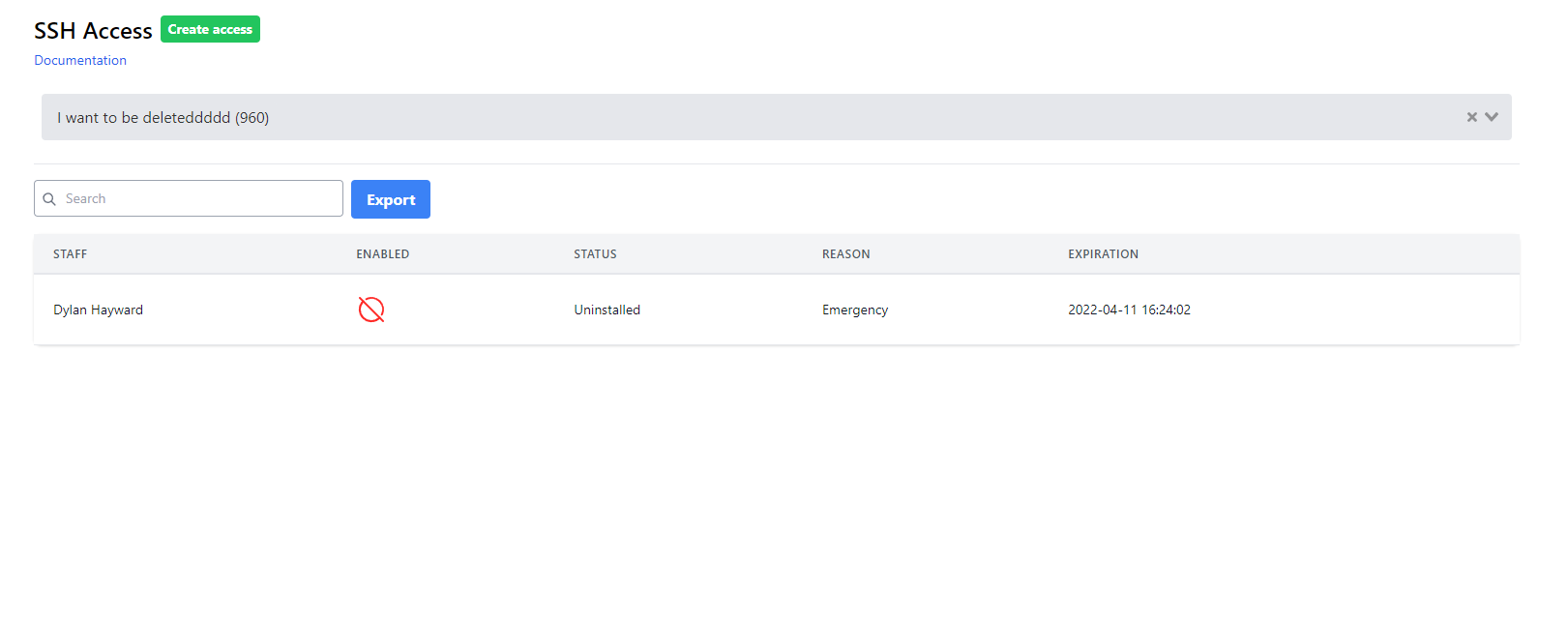
At the top of the screen you should see a large input box. Start typing either the vhost id number or the vhost's name and you should see an autocomplete dropdown with options. Select the vhost that you'd like to know more about. You should now see a list of access times with corresponding staff names/reasons, etc. Any keys that are still active (i.e. with time remaining before expiration) can be manually disabled by clicking the button on the right hand side.
If you see "uninstalled" in relation to the key, it means that vhostman has reported that this key does not currently have access to the vhost.
How can I export all staff access to a vhost?
If you're viewing the historic access to a vhost, you should see a blue export button near the search input box at the top of the screen. Clicking this should download a .csv file of all historic access.
How can I create emergency access to a vhost?
Simple! Click that green button at the top of the SSH access screen. Fill in the form (including selecting the correct site and expiration time) and click Submit. You should now be able to use your SSH key to access the vhost directly.
info
In a future release, creating emergency access will trigger a Slack notification with the details.
Image notes:
- "Break Glass" by Shermeee is marked with CC BY 2.0.